Alert rules
Create an alert rule in Maple: pick what to watch, set warning and critical thresholds, choose who gets notified, and replay the rule against past data. In the app or over the API.
An alert rule watches one signal, checks it against a threshold on a fixed interval, and opens an incident when the threshold is crossed for long enough. Each incident notifies the destinations attached to the rule.
You manage rules on the Rules tab of the Alerts page. Creating, editing and deleting rules requires the organization admin role.
Prerequisites
- Telemetry arriving in Maple. Built-in signals read traces.
- At least one notification destination, or the admin role to add one from the editor. A rule cannot be saved without one.
Create a rule
- Open Alerts and click New rule. To start from a service, open the service and click Create alert, which fills in the service.
- Start with a template opens first. Pick a template, or Start blank. Every field a template sets stays editable.
- Fill in the four sections of the editor: What to watch, When to alert, Who gets notified and Name it.
- Check the chart under When to alert. It replays the rule against past data as you edit.
- Click Create rule.
To alert on a dashboard chart instead, open the chart’s menu on the dashboard and choose Create alert. The rule opens with the chart’s query.
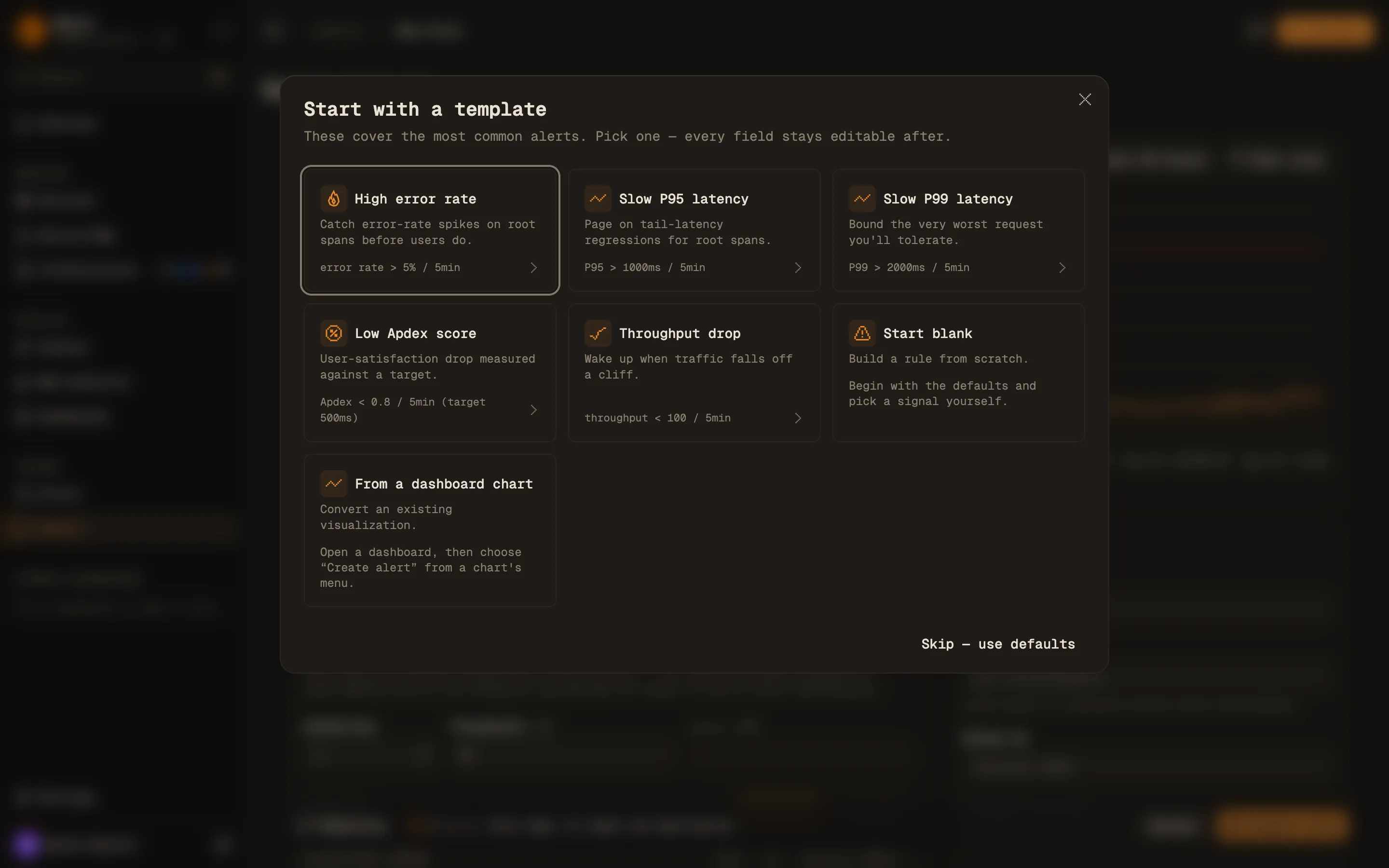
| Template | Signal | Fires when | Window | Also sets |
|---|---|---|---|---|
| High error rate | Error rate | above 5% | 5 min | Split by service.name when no service is set |
| Slow P95 latency | P95 | above 1000 ms | 5 min | |
| Slow P99 latency | P99 | above 2000 ms | 5 min | |
| Low Apdex score | Apdex | below 0.8 (T 500ms) | 5 min | |
| Throughput drop | Throughput | below 100 | 5 min | Minimum samples 0 |
Skip and use defaults closes the picker with an empty rule. Templates in the bar at the bottom of the editor opens it again.
What to watch
The Query mode is Built-in, Query builder or SQL. A blank rule opens in Query builder. The templates use Built-in.
Built-in
Built-in signals read the entry-point spans of each service: server and consumer spans, and trace roots. That is the same set of requests the service pages chart.
| Signal | API value | Value compared against the threshold |
|---|---|---|
| Error rate | error_rate | Share of requests with status Error. Entered as a percent in the app, a 0 to 1 ratio in the API. |
| P95 | p95_latency | 95th percentile duration, in milliseconds. |
| P99 | p99_latency | 99th percentile duration, in milliseconds. |
| Apdex | apdex | Apdex score from 0 to 1, against the Apdex target. See Apdex alerts. |
| Throughput | throughput | Estimated number of requests in the window. |
Counts and rates are weighted for sampling. See Sampling and throughput.
A built-in signal only sees entry-point spans. A service that records a failure on a child span and still returns success from its entry point stays healthy on these signals. Use Query builder or SQL for that case. Open in query builder turns the current signal into a query.
Built-in rules pick their services and environments here:
- Services. Empty means every service. When you pick more than one service, Maple evaluates each service on its own and opens a separate incident per service.
- Environment. Empty means every environment. Otherwise the rule only counts spans from the listed deployment environments (
deployment.environment.name). - Split by. With no services selected, a field such as
service.nameor an attribute likeattr.http.routeevaluates each group on its own. You get one incident per group that breaches, instead of one blended value that may never cross the threshold. - Exclude. Skips named services. It only applies when no services are selected.
Query builder
Query builder (builder_query) uses the same query builder as dashboard charts. It can read traces, logs, metrics or product events, with its own filters and group-by. Each group is checked on its own and gets its own incident.
SQL
SQL (raw_query) runs your own ClickHouse SQL. The query must include $__orgFilter and a $__timeFilter(...) on the time column, and return a time bucket and a numeric value. Reduce each window by turns the buckets in the window into one value: Last bucket, Sum, Average, Minimum or Maximum.
- To evaluate several groups, return a
groupcolumn. - Return a
samplescolumn with the number of events behind each row. Minimum samples sums it. Without it, every row counts as one sample, so the minimum counts buckets rather than events. - A query that returns no rows is a no-data check.
The editor times the query as you write it and shows Query time against the limit of the check interval. See the SQL reference for the macros, and Query time limits for the limits.
For Query builder and SQL rules the query carries its own filters, so the service and environment fields are hidden.
When to alert
The chart at the top of this section replays the rule over a past range. It shows the value for each window, the threshold as a dashed line, and shaded bands where the rule would have held an incident open. The header reads Would have fired with a count, or No breaches in this window. Pick the range in the time picker above the chart.
Dry run evaluates the rule once against current data and shows the value with Would trigger or Within threshold. Neither the chart nor the dry run sends a notification.
Below the chart:
- Alert when the value is the condition: is above, is at or above, is below, is at or below, equals, is not, is between or is outside. The last two use From and To.
- Thresholds sets the value the signal is compared against, its Severity (Warning or Critical), and an optional recovery value (Recovers below or Recovers above). With a recovery value set, the incident clears only once the signal crosses back over it.
- How it is checked sets the window, how many breaches open an incident, the sample floor and the check interval.
- After it fires sets when the incident resolves, how often it reminds, and what an empty window means.
Warning and critical tiers
A rule starts with one tier. On a Warning rule, Add critical tier adds a second, stricter threshold. An open incident escalates to Critical when the value crosses it, and drops back to Warning when it recovers. Each tier has its own recovery value and its own destinations, and a critical incident also notifies the warning tier’s destinations.
Tiers work with the above and below conditions. Equals, is not, is between and is outside have one tier, and saving drops a critical tier.
Fields and defaults
How it is checked
| Field | Default | API field | What it does |
|---|---|---|---|
| Window | 5 min | window_minutes | Length of the window each check aggregates. 1 to 1440 minutes. |
| Breaches to fire | 2 | consecutive_breaches_required | Breaching checks before an incident opens. |
| Out of the last | In a row | breaches_out_of | Fire when Breaches to fire of the last N checks breach, instead of in a row. 1 to 30. |
| Minimum samples | 50 | minimum_sample_count | A window with fewer samples is skipped and cannot fire. |
| Check every | Auto | evaluation_interval_minutes | 1, 5, 10, 15, 30 or 60 minutes. Auto is a fifth of the window, from 1 to 5 minutes. |
After it fires
| Field | Default | API field | What it does |
|---|---|---|---|
| Resolve after | 2 | consecutive_healthy_required | Healthy checks in a row before an incident resolves. |
| Remind while open, every | 30 min | renotify_interval_minutes | How often an open incident notifies again while it keeps breaching. |
| Alert when there is no data | Off | alert_on_no_data | Count an empty window as a breach. Off, those windows are skipped. |
Over the API, minimum_sample_count defaults to 0. The other API defaults match the editor.
For a Throughput drop rule, set Minimum samples to 0, as the Throughput drop template does. With 50, a window under 50 requests is skipped, so a full outage cannot fire. How alert rules are evaluated covers skipped windows, no data and the check interval in detail.
Who gets notified
Click Add destination to attach an existing destination, or create one from the same menu. With a critical tier, the section has one list for Warning and one for Critical, on top of the warning destinations.
Send test delivers a test notification for this rule to the selected destinations.
Message template customizes the Title and Body (Markdown) of Slack, Discord, Telegram and PagerDuty notifications with {{ variable }} substitution, for example {{ rule.name }}, {{ value }} or {{ links.app }}. Leave it blank for the built-in format. Email, webhook and Hazel destinations always use the built-in format.
Name it
Rule name is required. Tags (up to 20, each up to 32 characters) group and filter rules in the alerts list. Add notes opens a free-text Notes field for runbook links or ownership.
The bar at the bottom of the editor reads Ready to save, or lists what is still missing. Click Create rule, or Save changes on an existing rule.
Create a rule over the API
Rules are available at /v2/alerts/rules on https://api.maple.dev (https://api.eu.maple.dev for EU organizations). Use an API key (maple_ak_…) from Settings → Keys. Creating, updating, deleting and testing a rule requires the alerts:write scope and the org admin role.
curl -X POST https://api.maple.dev/v2/alerts/rules \
  -H "Authorization: Bearer maple_ak_…" \
  -H "Content-Type: application/json" \
  -d '{
    "name": "Checkout error rate",
    "signal_type": "error_rate",
    "comparator": "gt",
    "threshold": 0.05,
    "window_minutes": 5,
    "service_names": ["checkout"],
    "environments": ["production"],
    "severity": "critical",
    "minimum_sample_count": 50,
    "destination_ids": ["dest_oybbpTBhtSFGShMjjLiCrh"]
  }'
Error rate thresholds are 0 to 1 ratios in the API (0.05 is 5%). destination_ids must name at least one existing destination.
For a warning and a critical tier, send thresholds in place of severity, threshold and destination_ids. Tiers go lowest first, at most one of each severity:
"thresholds": [
  { "severity": "warning", "value": 0.02, "destination_ids": ["dest_oybbpTBhtSFGShMjjLiCrh"] },
  { "severity": "critical", "value": 0.05, "recovery_value": 0.03, "destination_ids": ["dest_4tqzJ2bXvN8yWkLmPa6sRc"] }
]
To preview a rule over a past range, POST /v2/alerts/rules/preview with the rule under rule and the range in start_time and end_time. It needs the alerts:read scope and sends nothing.
curl -X POST https://api.maple.dev/v2/alerts/rules/preview \
  -H "Authorization: Bearer maple_ak_…" \
  -H "Content-Type: application/json" \
  -d '{
    "rule": {
      "name": "Checkout error rate",
      "signal_type": "error_rate",
      "comparator": "gt",
      "threshold": 0.05,
      "window_minutes": 5,
      "service_names": ["checkout"],
      "severity": "critical",
      "destination_ids": ["dest_oybbpTBhtSFGShMjjLiCrh"]
    },
    "start_time": "2026-07-14T00:00:00.000Z",
    "end_time": "2026-07-15T00:00:00.000Z"
  }'
The response lists the value and status of each window per group in series, and the spans where an incident would have been open in would_fire.
POST /v2/alerts/rules/test evaluates a rule once against current data. Set send_notification to true to also deliver a test notification. See the API reference for every endpoint and field.
Troubleshooting
- The rule never fires. Open the rule and look at its Checks. Skipped checks mean the window had no data or fewer samples than Minimum samples. In the editor, the chart says how many windows would be skipped and why. Check the service names and environments against what is arriving.
- The rule fires and resolves over and over. Raise Breaches to fire and Resolve after, or widen the window.
- Save is disabled. The bar at the bottom of the editor lists what is missing, such as a rule name or a destination.
Next steps
- How alert rules are evaluated: skipped windows, no data, the check interval and query limits.
- Incidents: what happens after a rule fires.
- Apdex alerts: choosing the target and threshold for an Apdex rule.
- Uptime monitoring: availability alerts from traces, and HTTP checks from the OpenTelemetry Collector.
- Notification destinations: where notifications go.